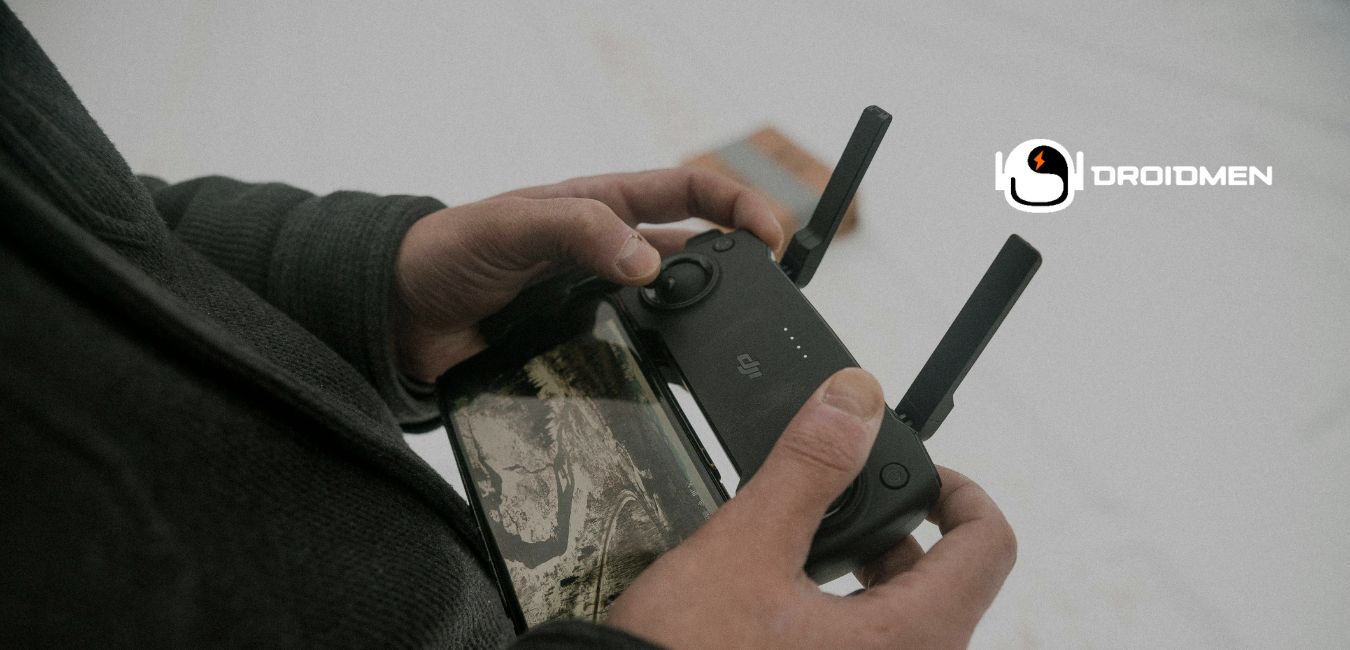
Connecting your drone’s camera to your phone opens a world of possibilities. Imagine capturing stunning aerial shots and crystal-clear video in real-time, all streamed directly to your phone’s screen. But how to connect drone camera to phone?
To connect a drone camera to your phone, install the drone’s app from your app store. Turn on the drone and activate its Wi-Fi. Connect your phone to this Wi-Fi network through your phone’s settings. Finally, open the app to view or control the camera. This ensures a seamless connection.
Get ready to elevate your drone experience and take your mobile photography to new heights!
Table of Contents
Key Takeaways
- Seamless Integration: Connect your drone camera to your phone by downloading the compatible app, ensuring easy control and access.
- Reliable Connection: Use Wi-Fi or Bluetooth to establish a stable link between your drone camera and smartphone for live video feeds.
- Immediate Access: Quickly view and manage drone footage on your phone, perfect for on-the-go monitoring and adjustments.
Preparing Your Equipment
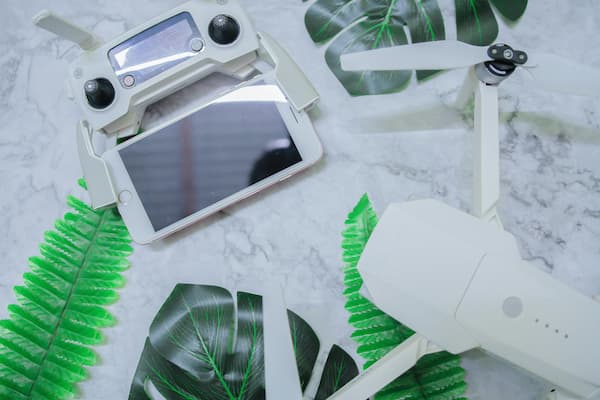
Before you connect your drone camera to your phone, make sure everything is ready to go.
Check Drone Compatibility
Check if your drone supports connection with your phone model. Look at your drone’s manual or go to the manufacturer’s website.
Update Software
Make sure your drone firmware and mobile OS are fully updated. Open the drone’s app—if an update is available, it will prompt you.
Charge Devices
Fully charge both your drone and phone to avoid interruptions during setup and flight.
Steps To Connect Drone Camera
1. Download The Drone App
Find your drone’s official app in the App Store or Google Play. Popular apps include DJI Fly, FreeFlight Pro, and Ophelia GO. Follow the installation prompts.
2. Power On Drone And Phone
Turn on your drone and your phone. Make sure the drone’s indicator lights are blinking or solid, per the manual, showing it’s ready.
3. Enable Wi-Fi Or Bluetooth
Most drones use Wi-Fi; a few may use Bluetooth. Open your phone’s settings and enable the correct one as per your drone model.
4. Pair Your Devices
Locate the drone’s SSID in your phone’s Wi-Fi list and connect using the default password. For Bluetooth models, select the drone under Bluetooth devices.
Pairing Process
Locate Drone Wi-Fi Network
Turn on the drone and search for its SSID in your Wi-Fi settings. The name often reflects the drone brand or model.
Connect Phone To Drone
Tap to connect. Enter the password if prompted—typically found on a sticker or in the manual.
Enter Access Code (If Required)
Some drones require an additional pairing code provided by the app or found in documentation.
Camera Control And Settings
Access Camera Feed
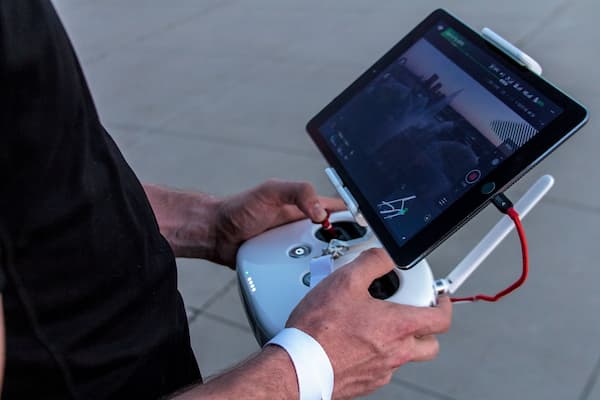
Once the drone is paired and the app is open, tap the camera icon or “Start FPV” to view live feed.
Adjust Camera Settings
Use the app’s settings to fine-tune brightness, angle, or resolution. Common settings include ISO, frame rate, and gimbal tilt.
Test Remote Functions
Before flying, test controls via the app: move the drone slightly, start/stop recording, and snap a photo.
Common Troubleshooting
Screen Delay
Move closer to the drone and close other apps. Lowering stream quality may also reduce lag.
Stuttering
Avoid interference by flying in open areas. Keep the drone within line of sight and avoid signal-blocking structures.
Disconnection
Ensure the drone stays within its signal range. Also check for battery issues or overheating.
App Crashes
Update the app and your OS, and restart your phone. Grant required permissions (camera, location, storage).
Improve Stability And Picture Quality
Use High-Quality Equipment
Invest in drones with good signal range and image stabilization. Your phone should also have strong Wi-Fi capabilities and processing power.
Optimize App Settings
Adjust frame rate, resolution, and bitrate based on current conditions. Use 720p for better stability or 4K when clarity matters most.
Keep Devices Updated
Regularly update firmware and apps to reduce bugs and enhance performance.
Reduce Interference
Avoid flying near power lines, metal buildings, or areas with dense Wi-Fi traffic. Turn off background syncing apps.
Frequently Asked Questions On Connecting Drone Camera To Phone
1. How Do I Adjust The Drone Camera Settings From My Phone?
To adjust the drone camera settings from your phone, use the drone’s app, tap into settings, and change resolution, exposure, or angle.
2. Does My Phone Need Special Features To Connect To A Drone Camera?
No, your phone doesn’t require special features to connect to a drone camera but your phone should run a compatible OS and support Wi-Fi or Bluetooth.
3. Can I Connect Multiple Phones To One Drone Camera?
Yes, you can connect multiple phones to one drone camera only if your drone supports multi-user mode—most consumer drones do not.
Conclusion: How To Connect Drone Camera To Phone?
Connecting your drone camera to your phone requires downloading the right app, pairing via Wi-Fi or Bluetooth, and following the in-app prompts. Some drones add extra steps for security. With setup complete, you’ll enjoy live FPV footage and full control from your smartphone.