Having trouble with your Holystone drone’s voice recording? You’re not alone. Many drone enthusiasts face this challenge, often frustrated when audio doesn’t work as expected.
Holystone drone voice not recording involves checking that the audio feature is activated, the SD card is correctly inserted and has sufficient space, and the firmware is updated. Persistent issues could indicate hardware problems; contact Holystone support if the drone is under warranty.
This guide will walk you through every step on troubleshooting. From simple fixes like checking your settings to knowing when to reach out for support. Let’s dive in and make your drone recording sound seamlessly!
Table of Contents
Key Takeaways
- Check Settings and Updates: Ensure the audio recording feature is active, the SD card has space, and the firmware is up to date.
- Inspect for Hardware Issues: If voice recording still doesn’t work after basic troubleshooting, look for signs of faulty microphones or components.
- Utilize Warranty and Support: If problems persist, contact Holystone support, especially if the drone is under warranty, for repairs or replacement guidance.
Possible Reasons For No Voice Recording
Sometimes, Holystone drones don’t record audio as expected. This can happen for several reasons, from missing hardware to software issues. Knowing why this occurs helps you fix the problem faster and get the recordings you need.
No Built-In Microphone
Some Holystone drones do not have a built-in microphone. This design focuses on capturing video but skips audio, so check if your drone has this feature. If it doesn’t, you can use an external device to record sound separately and then sync it with your footage.
Incorrect Audio Settings
Sometimes, the issue lies in the audio settings. You won’t get sound on your videos if the audio isn’t set to record. Look through your drone’s app or settings menu to see if there’s an audio option. When it is available, ensure it’s set to “on” and make any adjustments needed for clear recording.
Sd Card Or Storage Issues
SD cards or onboard storage could also cause problems. If the card isn’t properly inserted or has limited space, it may stop audio from saving. Remove the card, check for damage, reinsert it firmly, and ensure enough recording storage space. A full or faulty SD card won’t reliably save audio.
App Or Software Malfunction
Sometimes, the drone’s app or software has glitches that impact audio recording. An outdated app may cause bugs or errors, stopping your drone from recording sound. Make sure you have the latest app version and firmware. Update them if needed, as fixes often resolve recording problems.
External Noise Interference
External noise, like wind or propeller sounds, can interfere with recording. These loud sounds can drown out any voice or quiet background noise you want to capture. Try recording in a calm environment or using a separate microphone for voice recording to reduce interference and enhance audio quality.
Checking Drone Audio Capabilities
First, to understand why your Holystone drone isn’t recording voice, check its audio capabilities. Not all drone models can capture sound directly. Here’s what to look for:
Verify Model Specifications
Start by checking your drone’s specifications. The user manual or manufacturer’s website lists key features. See if your model supports voice recording. Many drones focus on video and may not come with built-in audio functions. Understanding what your drone can do helps narrow down the problem.
Check For Microphone Support
Some drones lack a built-in microphone. If voice recording is crucial, see if your model includes one. If it doesn’t, that’s likely why your audio isn’t working. In this case, you may need to use an external audio recorder. Also, inspect the drone for any microphone ports and see if it has audio support.
Confirm Supported Audio Formats
Holystone drones that can record sound may only support certain audio formats. Review the manual to know which formats are compatible. If your drone records audio in a specific format, ensure your playback device can read it. Incompatible formats could cause your recording to seem nonexistent.
Troubleshooting Audio Settings
Getting the audio settings right on your Holystone drone can solve recording issues. This section will guide you through the process of checking and adjusting the settings to ensure your drone captures sound effectively. Let’s walk through each step.
Access Settings In The App
Open the Holystone app on your smartphone or tablet. Go to the main menu and select the settings option. Locate the audio settings or media preferences tab. This section contains options that impact how your drone records audio. Check for any toggles or buttons related to sound recording.
Adjust Audio Preferences
Once you have accessed the audio settings, ensure the recording feature is turned on. Look for any volume sliders and set them to a moderate level. Disable noise-canceling features, if present, as they may block or interfere with the drone’s audio capture. Save your changes before exiting.
Restart App And Drone
Restarting your app and drone often fixes small issues. Close the Holystone app and relaunch it. Turn off the drone and power it on again after a few seconds. This step helps reset any temporary glitches that might prevent audio from recording.
Test With Different Devices
Try connecting the drone to a different phone or tablet. Sometimes, app and device compatibility issues can cause recording problems. By testing with another device, you can determine if the problem lies with your original equipment or the drone itself.
Check For Software Updates
Software updates can fix bugs or improve audio features. Open the Holystone app and check for updates. If an update is available, install it and follow any prompts to complete the process. Also, check if your phone or tablet needs an update to better support the drone app.
Ensuring Proper Storage And SD Card Use
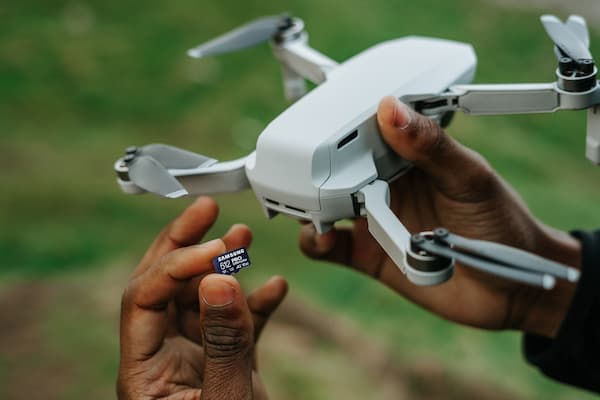
Your Holystone drone needs proper storage to record voice and video. The SD card you use plays a key role. Make sure your card works with your drone and has enough free space. Let’s walk through the steps to ensure your SD card is working correctly.
Confirm SD Card Compatibility
First, check if your SD card is compatible with your Holystone drone model. Not every SD card works with all drones. Refer to the drone’s manual or manufacturer’s website. Use the right class and size. For instance, many Holystone drones work well with Class 10 SD cards that have at least 32GB of storage.
Format SD Card Correctly
Formatting your SD card clears unnecessary data and prepares it for use. Connect the SD card to your computer. Select the card, choose the “Format” option, and pick the recommended file system (like FAT32). Be sure to format the card inside the drone if your model has that option. This ensures full compatibility.
Check Storage Space Available
An almost-full SD card can block new recordings. Regularly check the available space. Insert the SD card into your computer and view its properties. Clear unnecessary files if the card is full. Keep enough free space to record new audio and video.
Test With A Different SD Card
If problems continue, try a different SD card. Sometimes, cards become corrupted or fail. Borrow or buy a new, compatible SD card and test it in your drone. If the new card records voice without issues, your original card may be faulty and need replacement.
Alternative Solutions For Voice Recording
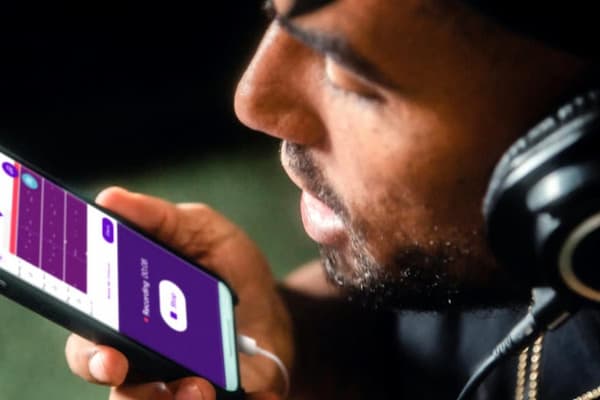
If your Holystone drone doesn’t capture audio properly, consider alternative ways to record sound. Using separate devices to capture audio will ensure you get quality recordings. Here are some effective options:
Use An External Audio Recorder
An external audio recorder can provide high-quality sound. Place it near the area where you want to capture audio. Ensure it stays stable and close enough to record clearly. Devices like handheld recorders are easier to use and deliver better sound than built-in microphones. Once recorded, you can transfer the audio file to your computer for editing.
Record Voice On Smartphone
A smartphone is a handy tool for recording voice. Use the built-in voice recorder app or download one designed for better sound quality. Keep your phone close to the action for clear audio. Make sure it stays protected from wind and background noise. This way, you can still capture important audio even if the drone doesn’t.
Sync Audio In Post-Editing
Once you have separate audio files, sync them with your drone footage. Use video editing software to match the sound with the video. Tools like Adobe Premiere or iMovie let you align the audio track with the visuals. Pay attention to matching the timing perfectly for a seamless result.
Test Third-Party Recording Apps
If you prefer using your drone for audio, try third-party recording apps. These apps may offer better sound capture features. Search for apps compatible with your device and test their quality. Some apps can reduce background noise or improve audio clarity. Experiment with a few options to see what works best.
When To Contact Holystone Support?
Sometimes, fixing recording problems on your own doesn’t work. In these cases, contacting Holystone support is necessary. Here’s when you need their help.
Persistent Recording Issues
Don’t wait too long if your drone continues to have recording problems despite your efforts. Resetting settings and checking connections works for most users, but the issue might be more serious if these fixes fail. Contact Holystone Support to avoid further complications. They have specialized solutions and can guide you through more advanced troubleshooting.
Faulty Hardware Symptoms
Sometimes, your drone’s hardware may be faulty, causing recording issues. Signs include broken microphones, damaged connections, or parts that don’t respond correctly.
Stop using the drone if you notice physical damage or failed parts. Contact Holystone Support for repair options. They will help determine whether the hardware needs replacement or service.
Drone Still Under Warranty
If your drone is under warranty, contacting Holystone Support allows you to fix or replace it without extra costs. Keep your purchase receipt and warranty information ready. The support team can check your warranty details and guide you through the next steps. Using the warranty ensures your drone gets professional care.
Assistance With Firmware Updates
Firmware updates fix bugs and improve features, but sometimes, they create issues. If a recent update caused the voice recording problem or you struggle with installing updates, ask Holystone Support for help. They can guide you through the update process or troubleshoot any new issues that occur. This way, you can keep your drone software running smoothly.
FAQs
1. What Is The Best Way To Record My Voice While Flying A Drone?
The best way to record your voice while flying a drone is to use an external audio recording device, such as a smartphone or dedicated recorder with a high-quality microphone. Narrate your flight as you operate the drone, then sync the audio with your drone footage during video editing.
2. How Do I Eliminate Drone Propeller Noise If I Record Separately?
To eliminate drone propeller noise if recording separately, use a high-pass filter to cut low-frequency noise and apply equalization to isolate unwanted sounds. Utilize noise reduction software to remove residual noise and blend with clean ambient audio. This improves sound quality effectively.
3. Is There Any Way To Record In-Flight Sounds From My Holy Stone Drone?
To record in-flight sounds from your Holy Stone drone, use an external microphone or audio recorder mounted separately, as onboard microphones capture mostly propeller noise. Alternatively, sync audio from a ground-based recorder or add realistic sound effects in post-production for optimal results.
Conclusion
Fixing voice recording issues on your Holystone drone isn’t complicated. Start by checking the settings, SD card, and firmware. Make sure everything is updated and correctly set up. If problems continue, look for signs of faulty hardware. Remember, your warranty could save you from extra costs.
Don’t hesitate to contact Holystone support when needed. They can help with advanced troubleshooting and guide you through any firmware updates. Being proactive and knowing when to get help will keep your drone running and ensure you capture the sound recordings you need.